Feature
AI Reframe: every shot gets the right view. Point at what to follow.
Reeltopus converts horizontal video to vertical by choosing a view for each shot. A talking head gets a calm, tracked crop. A wide panel or a slide is shown whole. A screen share puts the screen on top and the people below. Anything moving can be followed, not only faces, and if you'd rather choose, click what to follow and it stays on it, across cuts.
9:16, 1:1 and 16:9 on every plan, Free included.
Four views, picked shot by shot
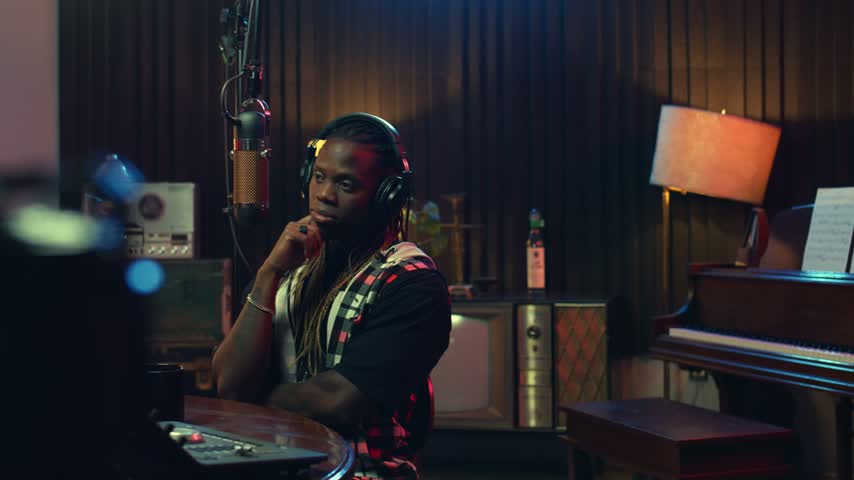
One person, or anything that moves
Track
A full-height crop that follows the speaker, or the main moving subject when there's no usable face. It holds still, pans gently and only jumps where the video itself cuts.
A wide panel or a slide
Whole shot
When no crop can hold everyone without slicing someone, or the shot is a slide, it's shown whole: fit to the width over a blurred fill of the same picture.
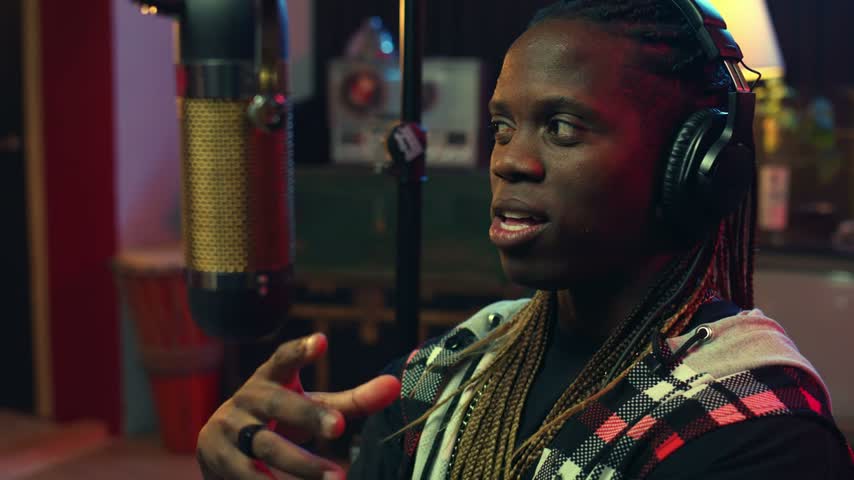
A screen share with webcams
Screen + people
The shared screen across the top, readable in full, and the webcam people below, so the clip shows what's being explained and who's explaining it.
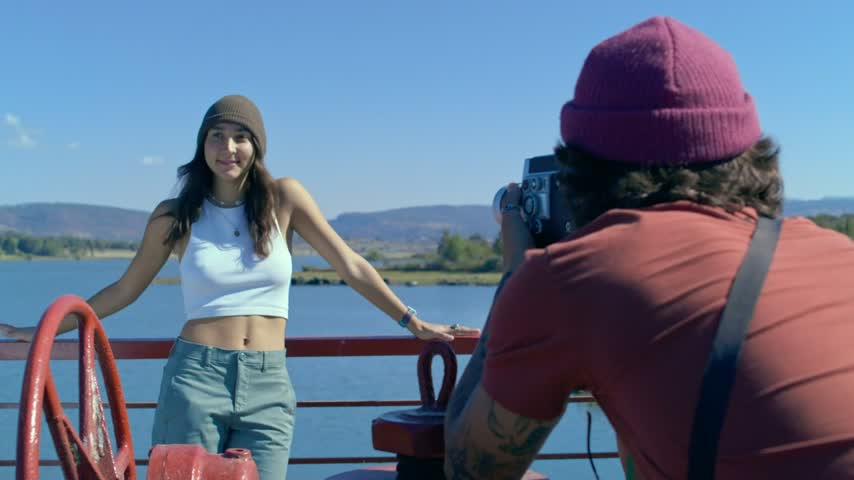
Two people far apart
Split screen
Two speakers who can't share one crop are stacked, one above the other, so neither is cut out while they trade lines.
In the editor, the layout chips are Auto (a view per shot), Split screen, Screen + people and Whole shot. Split screen and Screen + people are for 9:16.
Object tracking, not only faces
Faces get a camera operator
With people on screen, the crop follows whoever is speaking along a path planned for the whole clip: it holds while they hold, eases across when the speaker changes, and cuts only at the video's own scene cuts.
No face? It follows what moves
Shots without a usable face, like someone with their back to the camera, a dog, a car or a ball, follow the main moving subject, found by an object detector.
Pick what to follow
When the AI follows the wrong thing, or you want it on something it ignored, show it. No keyframes, no path to draw.
- 1
Press Pick what to follow
In the editor's Framing section, at a moment where your subject is clearly in view.
- 2
Click it, or draw a box round it
A person, an object, anything in the source frame. The clip shows Re-tracking… while it works.
- 3
It's followed through the clip
Across cuts too: after a cut, the tracker finds your subject again. Back to AI pick undoes it.
your pick9:16Adjust framing
For the shots you want exactly right, put the window where you want it. The AI keeps doing the rest.
Drag and zoom
Move the window where you want it and zoom in. That stretch holds still where you put it.
Choose how far it goes
Apply it to This shot, From here on or the Whole clip.
Or change a shot's view
Set a shot to Track, Whole shot or Screen + people instead of the AI's choice.
Kept when it re-tracks
Your framing survives every later re-track. Reset to AI framing hands it back.
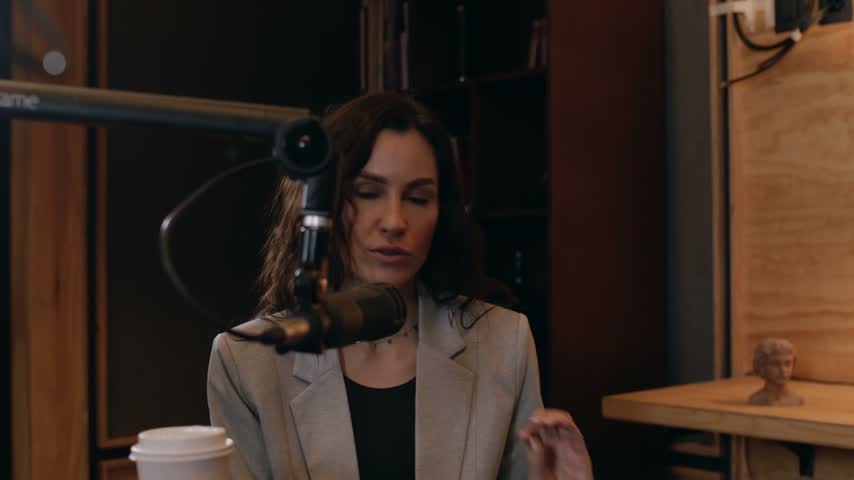
Every shape on every plan
- 9:16
TikTok, Reels, Shorts
Every view, including Split screen and Screen + people
- 1:1
Feeds
Track and Whole shot
- 16:9
YouTube, LinkedIn
Track and Whole shot
Keeps up with your edits
Re-tracks when the clip changes
Lengthen a clip past what was tracked, change its shape or pick a new subject, and it re-tracks by itself. You'll see Re-tracking…, and the old framing stays until the new one is ready.
Works from chat
Ask for “show the whole shot” or “screen and people layout” in chat-to-edit, and the clip changes. Every change is one undo step.
And from the API
A clip's layout is single (Auto), split, screen-share or fit (Whole shot) in the REST API and the MCP server, the same edits the editor makes.
AI Reframe and OpusClip ReframeAnything
| Reeltopus | OpusClip | |
|---|---|---|
| Shapes | 9:16, 1:1 and 16:9 on every plan, Free included. | 9:16 on Free and Starter. 1:1 and 16:9 on Pro. |
| Following moving subjects | Faces with a speaker-aware camera path, and any moving subject (a body, an animal, a vehicle, a ball) when there's no usable face. Every plan. | Tracks moving speakers on every plan. Moving-object tracking on Pro. |
| Your own control | Pick what to follow (click or draw a box) and Adjust framing (drag, zoom, or set a shot's view), on every plan. | Manual “custom reframing” on Starter and above. |
| Layouts | Chosen per shot: Track, Whole shot, Screen + people, and Split screen for two far-apart speakers. No gameplay layout. | Dynamic layout switching, with screenshare and gameplay layouts, on every plan. A genre-specific reframing model. |
If you clip gameplay, OpusClip has a layout for it and we don't. Pricing, billing and the rest are on Reeltopus vs OpusClip. OpusClip and ReframeAnything are trademarks of their owner; Reeltopus isn't affiliated with them.
Questions
What is AI Reframe?
It's how Reeltopus turns a horizontal video into vertical or square clips. It chooses a view for each shot, moves a smooth crop with the speaker or the main moving subject, and lets you point at what to follow or set the framing yourself.
How do I convert a horizontal video to vertical for TikTok?
Upload the video to Reeltopus. Every clip it makes comes out at 9:16, the TikTok shape, reframed shot by shot and captioned. Check the framing in the editor, change anything you want, then download it.
Can it track objects, not just faces?
Yes. Shots without a usable face follow the main moving subject, such as a person's body, an animal, a vehicle or a ball. To follow something specific, press Pick what to follow and click it or draw a box round it.
What happens when a crop can't fit everyone?
If any vertical crop of a wide shot would slice someone, as with a row of panellists, or the shot is a slide, that shot is shown whole: fit to the width over a blurred fill. Two people far apart can be stacked in a split screen instead.
Does it work on screen shares and webinars?
Yes. A shot where the webcam people sit along the edge of a shared screen gets Screen + people: the screen on top, the people below. It needs the 9:16 shape. Webcam tiles are small in most recordings, so they're only as sharp as the source allows.
Are 1:1 and 16:9 on the Free plan?
Yes. 9:16, 1:1 and 16:9 are on every plan, and so are object tracking, Pick what to follow and Adjust framing. Split screen and Screen + people need the 9:16 shape.
If I edit a clip, do I lose my framing?
No. Lengthening a clip past what was tracked, changing its shape or picking a new subject re-tracks it automatically. The old framing stays until the new one is ready, and any framing you set yourself is kept.
Is the framing always right?
No tool's is. Framing is best effort: if tracking fails or doesn't finish in time, the clip keeps a centred crop and everything else still works. Any shot can be fixed with Adjust framing or Pick what to follow.
Reframe your next video, shot by shot.
Start free with 2 upload hours a month. No watermark, no card needed.